Aller au contenu

Step-by-step guide

How to Make a Knight Cat AI Video

Une ou deux photos · Vidéo complète vendue séparément · 10–30 secondes

Mode de création
Ajoutez une photo nette

Importez une photo nette d’une personne ou d’un animal pour créer un chevalier solitaire en armure avec une grande épée. Le visage doit être visible ; au moins 240 × 240 pixels.

Vérification de ton solde vidéo…

Paiement unique · La création démarre après le paiement

Utilise 17 crédits · Débit avant génération, remboursement en cas d’échec

En créant, vous confirmez avoir le droit d’utiliser toutes les photos importées. Conditions d'utilisation

Exemples réellement générés par IA

Vos photos. Votre histoire de chevalier.

Choisissez Une photo pour un petit chevalier seul, ou Deux photos pour ajouter un grand protecteur. Avec Deux photos, la photo 1 est le chevalier et la photo 2 le protecteur ; les deux sont nécessaires. Une personne ou un animal par photo.

Fonctionne aussi avec les animaux

Deux chats, vous et votre chien, ou un animal et un proche.

Découvrez les duos avec animaux →
Vidéo générée · Lire avec le son · Exemples réellement générés par IA
01

Une photo · Impassible dans le vent

10 secondes · 720P · Vertical · Créé avec ce générateur

Une photo, un clip de 10 secondes : le chaton reste impassible en armure complète pendant que le vent agite sa cape et l’herbe. La photo d’exemple est générée par IA.

Voir cet exemple
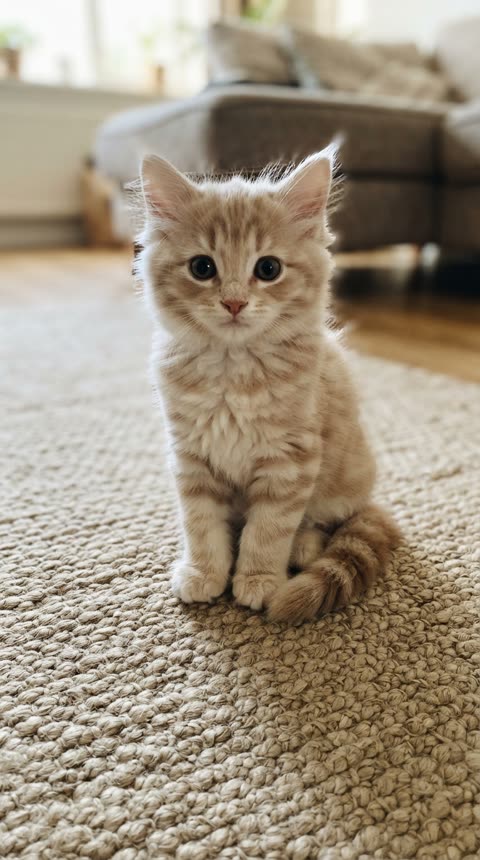
Une photo · Impassible dans le vent · Photo 1 · Petit chevalier
Photo 1 · Petit chevalier
Vidéo générée · Lire avec le son · Exemples réellement générés par IA
02

Deux photos · Révélation gym bro

10 secondes · 720P · Vertical · Créé avec ce générateur

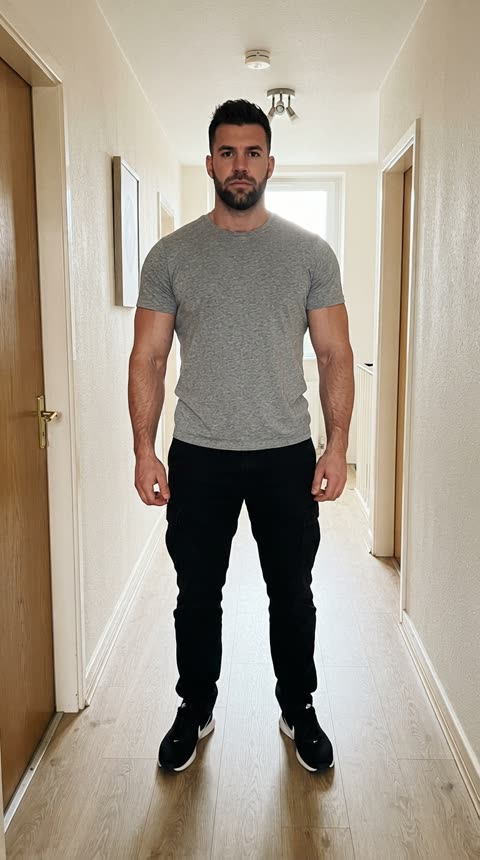
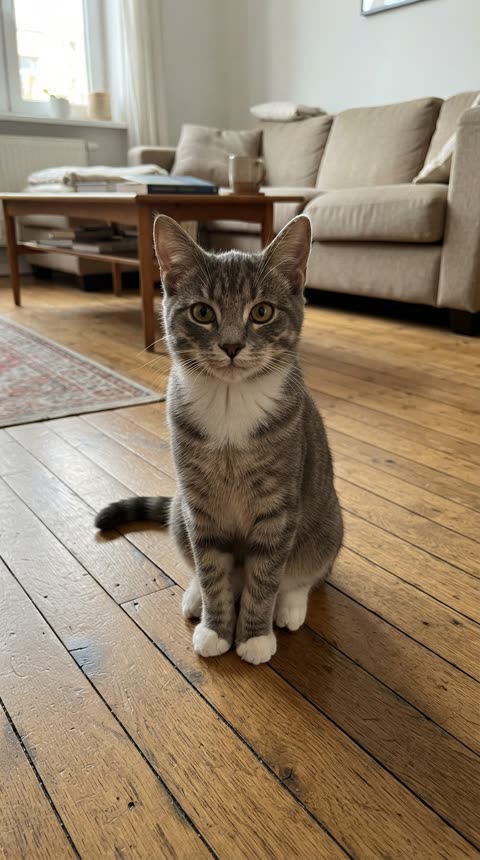
Deux photos : un chat pour le petit chevalier et une personne pour le gym bro. La caméra recule et révèle le compagnon géant avec une épée encore plus grande. Les photos d’exemple sont générées par IA.

Voir cet exemple
Deux photos · Révélation gym bro · Photo 1 · Petit chevalier
Photo 1 · Petit chevalier
Deux photos · Révélation gym bro · Photo 2 · Gym bro
Photo 2 · Gym bro

Choisissez Une photo pour un petit chevalier seul, ou Deux photos pour ajouter un grand protecteur. Avec Deux photos, la photo 1 est le chevalier et la photo 2 le protecteur ; les deux sont nécessaires. Une personne ou un animal par photo.

Before you upload

Use one sharp photo with a visible face or muzzle and as much of the body as possible. For a solo cat or dog, choose Single photo. For a pair, Photo 1 is always the little knight. Do not upload a screenshot of the meme as your identity photo.

To add yourself beside your pet, select Two photos. Put your pet in Photo 1 and your portrait in Photo 2. Use one subject per photo; you do not need a picture of the two of you together. Leave the setting at Misty moor for the familiar foggy-field atmosphere.

This tool makes a new video from your photos, not a copy of the original clips. One photo makes the solo knight standing unfazed in the wind; with two, the camera pulls back to reveal your giant companion beside them, holding an even bigger sword. Choose original wind ambience or silence. The original videos and music are not included.

The four things that matter

Photo 1 · Little knight

Use one sharp photo with a visible face or muzzle and as much of the body as possible. For a solo cat or dog, choose Single photo. For a pair, Photo 1 is always the little knight. Do not upload a screenshot of the meme as your identity photo.

Start short, then choose your format

Try 10 seconds to inspect the faces and armor. Choose 480P, 720P or 1080P, and portrait 9:16 or landscape 16:9. Longer or higher-resolution outputs use more credits.

Review the faces and armor

Try 10 seconds to inspect the faces and armor. Choose 480P, 720P or 1080P, and portrait 9:16 or landscape 16:9. Longer or higher-resolution outputs use more credits.

Keep the page open

The render runs on the server and the page streams the progress. Leave the tab open until it finishes.

Knight Cat AI questions

The practical details that decide how the finished video looks.

What photos work best?

Use one sharp photo with a visible face or muzzle and as much of the body as possible. For a solo cat or dog, choose Single photo. For a pair, Photo 1 is always the little knight. Do not upload a screenshot of the meme as your identity photo. To add yourself beside your pet, select Two photos. Put your pet in Photo 1 and your portrait in Photo 2. Use one subject per photo; you do not need a picture of the two of you together. Leave the setting at Misty moor for the familiar foggy-field atmosphere.

Which settings should I pick first?

Choose the performance mode, duration and resolution to see the exact credits before generating. Failed renders are not charged.

How long does a render take?

Most videos are ready in minutes. Longer and higher-resolution videos take longer, so keep the page open while it works.

Why did my video fail?

Renders can fail when a photo has no clear face, when several people share the frame, or when the service is busy. Try a clearer photo, or generate again. Failed renders are never charged.

Does AI replace the clothing with armor?

The generator dresses the little knight in fitted medieval armor and leaves faces visible; a gym bro in Photo 2 keeps their own clothes. It aims to retain recognizable faces, species and fur markings; it does not simply paste a face into the original clip. Hands, paws, sword details and likeness can vary, so check the preview.

What do I do after the render?

Preview and download your video, then share it with #KnightCat or #KnightProtector. Only use photos you have permission to use, and follow the platform’s posting rules.

Ready to try it?

Ambient mode adds our original wind audio. Silent mode has no sound. Both create a new scene from your photos; neither copies a viral video or song.